
Your calendar is only as good as what you remember to put in it. A dinner reservation, a doctor's appointment, a flight, a kid's recital — most of these arrive as emails, not as tidy .ics invites, so they never make it onto Google Calendar until you manually retype them (or forget entirely). This guide covers the practical ways to close that gap: from Google's built-in auto-add and calendar imports to full two-way sync that reads the plain-language events buried in your inbox and writes them straight to Google Calendar, keeping both sides in agreement.
What Google Calendar can (and can't) do on its own
Google Calendar already handles one narrow case well: when someone sends a proper calendar invitation — an email with an attached .ics event or a Google Calendar invite — it can add it automatically. In Google Calendar settings under 'Event settings,' the 'Add invitations to my calendar' option lets you choose to add every invitation automatically or only ones you've responded to.
The problem is that most life events never arrive in that format. A restaurant confirmation, an Airbnb booking, a flight itinerary, a school newsletter, a 'your appointment is confirmed' email — these are plain messages with a date buried in the text. Gmail's Smart Features will occasionally surface a few (flights, hotels, restaurant reservations) as auto-generated events, but coverage is narrow, US-centric, and easy to miss.
So the honest answer is: Google covers formal invites, and leaves the long tail of real-world confirmations to you. Closing that gap is where automation actually pays off.
Three ways to get email events onto your calendar
There's a spectrum of effort here, and it's worth knowing where each option lands before you commit.
- Manual add: open the email, click 'Create event' in Gmail (or copy the details into Google Calendar). Reliable but slow, and entirely dependent on you remembering.
- Import an .ics file: if a sender attaches a calendar file, use Google Calendar's 'Import' under Settings to pull it in. Works only when the file exists — which is rarely.
- Automatic inbox-to-calendar sync: a tool connects to Gmail or Outlook, reads the events described in your emails (even plain-text ones), and writes them to Google Calendar for you. This is the only approach that catches the confirmations Google ignores.
Why two-way sync matters more than one-way import
Getting an event onto your calendar is only half the job. Plans change — the reservation moves, the flight gets rescheduled, you decline the invite. If your automation only pushes events one direction, your calendar slowly fills with stale duplicates and you stop trusting it.
Two-way sync means the connection reads from your inbox and writes to Google Calendar, and reflects changes on both sides rather than dumping a one-time copy. An event you adjust stays adjusted; a booking that updates by email updates the calendar entry instead of spawning a second one.
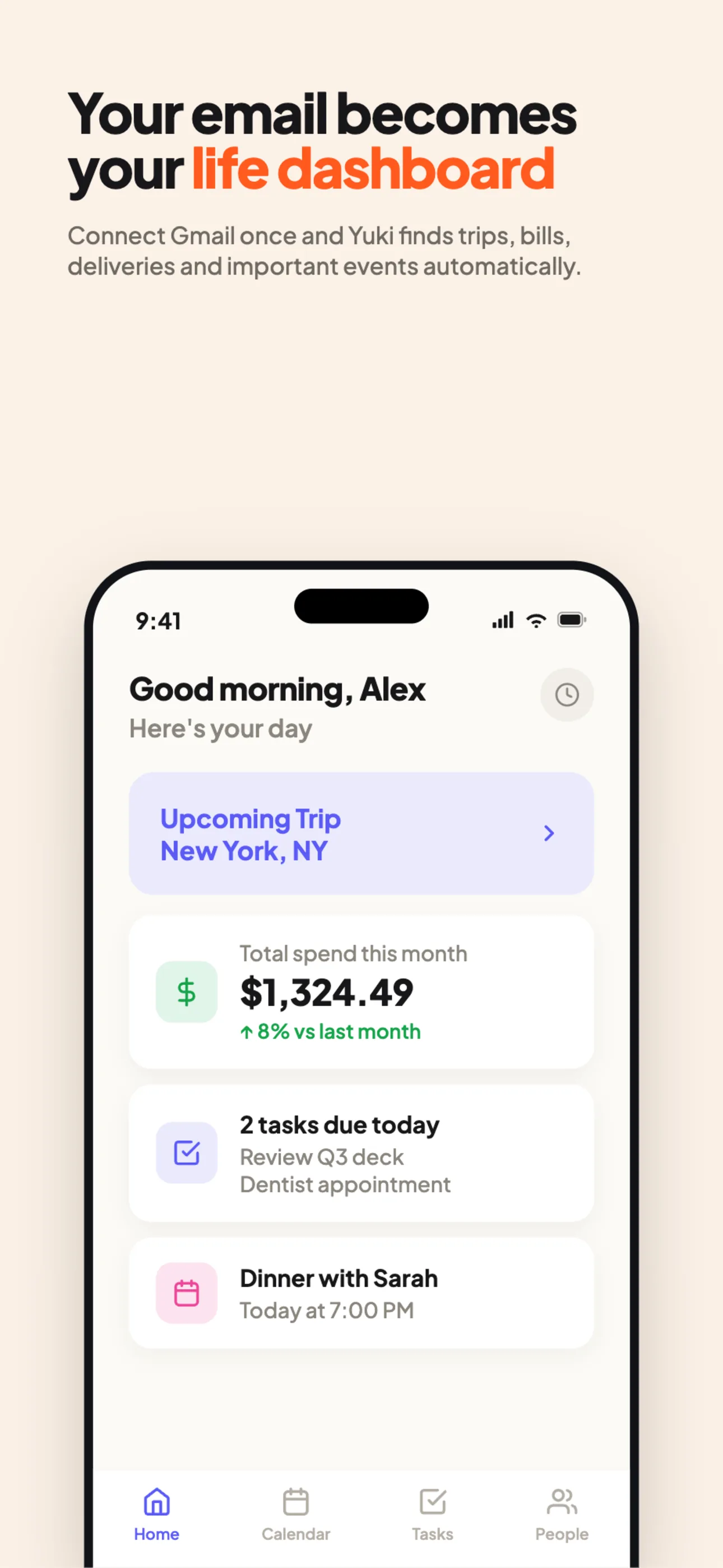
This is the model Yuki uses. It connects to your Gmail or Outlook, turns the confirmations, bills and invites already sitting there into calendar events, and writes them two-way to Google Calendar — so the calendar you already live in stays the source of truth, just with far less typing. On iOS it can also write to Apple Calendar.
Set it up so your inbox feeds your calendar
The whole point is to do this once and stop thinking about it. With Yuki (free, iOS and Android), setup is a few minutes and then it runs in the background: you connect your email, it reads the events across your inbox, and it keeps Google Calendar populated as new confirmations arrive.
Because Yuki is reading the same inbox for everything, the calendar isn't the only thing that fills in — the same flight email becomes a trip itinerary, the same bill becomes a tracked expense, and shared events can flow to a group calendar for a partner or family. That's the deeper value: one connection quietly removes the mental load of remembering to log every plan by hand.
Step by step
- 1Install Yuki (free) on iOS or Android and create an account.
- 2Connect your Gmail or Outlook inbox — this is what lets Yuki read the events, confirmations and invites already in your email.
- 3Grant Google Calendar access so Yuki can write events two-way to the calendar you already use.
- 4Let the first sync run. Yuki scans your inbox and turns bookings, appointments and invites into calendar events automatically.
- 5Review the events it surfaces; adjust anything and the change is kept rather than overwritten on the next sync.
- 6Optionally, share events to a group calendar for a partner, family or roommates so everyone sees the same plan.
- 7Leave it running — new confirmations that land in your inbox flow onto Google Calendar on their own.