
Almost every useful app now asks the same thing: "Sign in with Google" or "Connect your Gmail." It feels risky — you're handing a stranger the keys to your entire life, from bank alerts to boarding passes. The honest answer is that connecting Gmail can be perfectly safe, but only if you understand what you're actually granting and vet the app before you tap Allow. This guide explains OAuth in plain language, shows you how to read the permission screen, and gives you a checklist you can use on any app — including inbox assistants like Yuki that turn your email into a calendar, expense log and trip organizer.
What 'connect Gmail' actually does (OAuth, not your password)
When you tap 'Connect Gmail' or 'Sign in with Google,' you are not typing your Gmail password into the app. You're using OAuth 2.0, an industry-standard protocol where Google — not the app — collects your login, and then issues the app a limited access token. The app never sees your password, and it can't change it, log into your account, or read anything outside the specific permissions you approved.
That token is scoped and revocable. Google records exactly which app has access and what it's allowed to touch, and you can cut it off instantly from your Google Account without changing your password or affecting any other app. This is fundamentally safer than the old model of handing over your credentials — the whole point of OAuth is to give narrow, auditable, reversible access.
- The app receives a token, never your password.
- Access is limited to the scopes you approve on Google's screen.
- You can revoke it any time at myaccount.google.com/permissions.
- Revoking one app never affects your login or other connected apps.
Read the permission screen: scopes are everything
The single most important safety step happens on Google's consent screen. The wording tells you exactly how much power you're granting, and there's a big difference between levels. 'View your email messages and settings' is read-only. 'Read, compose, send, and permanently delete all your email' is full control. An app should only ask for what it genuinely needs to do its job.
Gmail scopes like reading message content are classified by Google as 'restricted,' which means any app requesting them must pass an independent third-party security assessment (CASA) and annual review to stay verified. If an app asks for far more than its features require — a simple receipt scanner requesting delete-everything access — treat that as a red flag and walk away.
- Read-only scopes let an app see email but never send or delete.
- Modify/send/delete scopes are far more powerful — grant them only when the feature clearly needs it.
- Restricted Gmail scopes require Google verification and a CASA security audit.
- An 'unverified app' warning means the app hasn't completed Google's review — proceed with caution.
The real question: do you trust the app and its privacy policy?
Because OAuth itself is sound, the actual risk lives in the app you're connecting to. Two apps can request identical permissions and treat your data completely differently. The questions worth answering are: Does the app store your raw emails, or just extract the details it needs? Do humans read your messages? Is your data sold to advertisers or used to train AI models? A trustworthy app answers these plainly in its privacy policy rather than burying them.
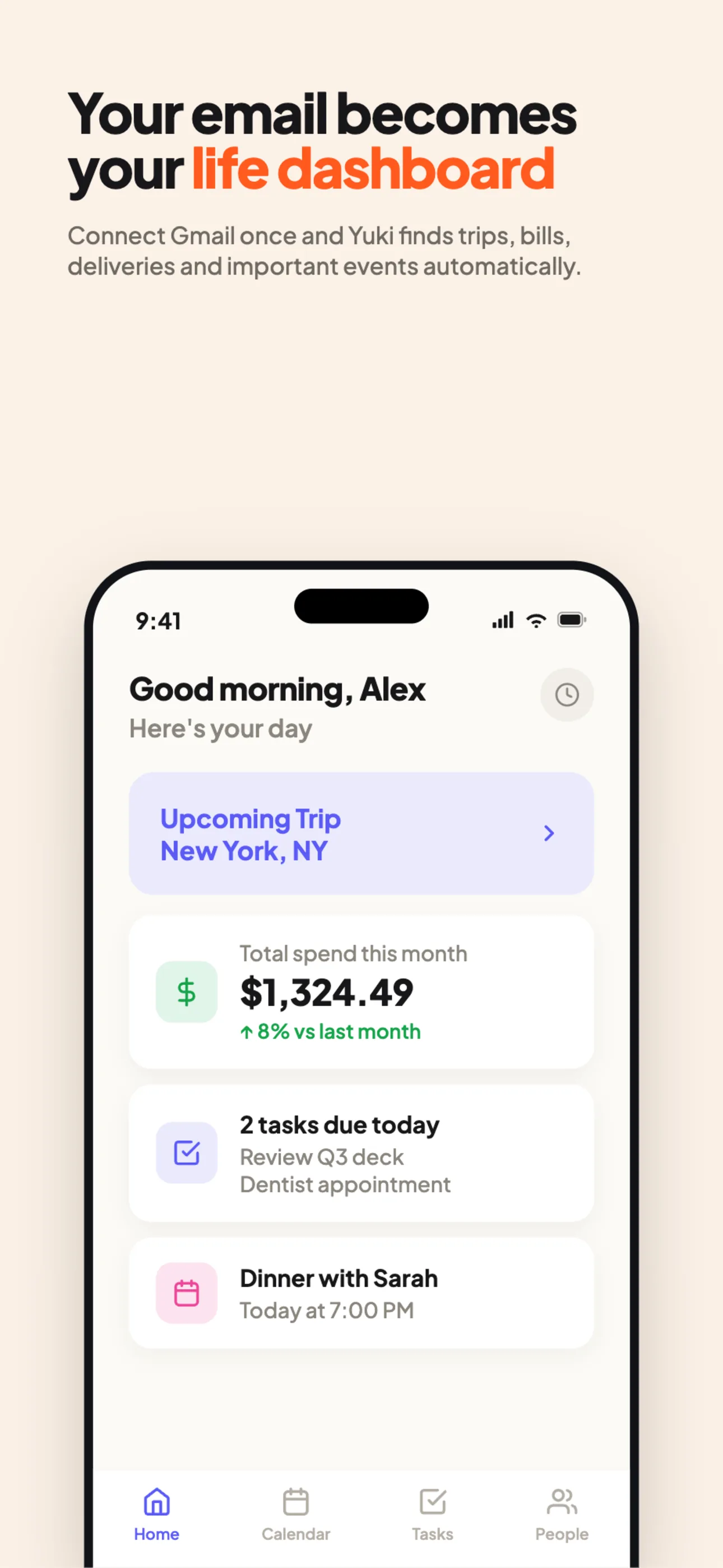
This matters most for inbox assistants, because their whole value comes from reading email. Yuki, for example, connects to Gmail or Outlook and turns the confirmations, receipts, bills and invites already sitting in your inbox into a live calendar, trip itineraries, tracked expenses and subscriptions, delivery tracking and reminders — so the mental load of remembering and organizing everyday life drops. The right way to evaluate any such tool is to check that it extracts structured details rather than hoarding your mail, and that you can disconnect in one tap whenever you want.
- Prefer apps that extract only what they need over apps that store your full inbox.
- Look for explicit statements on human access, data selling, and AI training.
- Favor apps with two-way, revocable access you control from Google.
- A clear, specific privacy policy is itself a trust signal.
A quick checklist before you tap Allow
You don't need to be a security expert to make a good decision. Run any app through a short mental checklist and you'll filter out the overwhelming majority of risky ones. The goal isn't zero connections — it's intentional connections, where you know what each app can see and you get real value in return.
If an app passes these checks, connecting Gmail is a reasonable, reversible decision. If it fails several, skip it. And regardless of what you connect, make a habit of reviewing your list of connected apps a couple of times a year and pruning anything you've stopped using.
- Is the app verified by Google with a named publisher?
- Does it request the minimum scopes its features need?
- Does the privacy policy address selling, training and human access?
- Can you revoke access instantly from your Google Account?
- Do you actually get enough value to justify the access?
Step by step
- 1Before connecting, read the exact permissions on Google's consent screen — note whether it says 'read', 'read and modify', or 'read, compose, send and permanently delete'.
- 2Check that the app is verified by Google (look for the app name and a verified publisher, and be cautious of an 'unverified app' warning).
- 3Skim the app's privacy policy for two things: whether humans read your email and whether your data is sold or used to train models.
- 4Confirm the app went through Google's CASA security assessment — required for any app requesting restricted Gmail scopes.
- 5Connect the app, then use it for a few days and watch what it actually does with your data.
- 6Periodically review connected apps at myaccount.google.com/permissions and revoke anything you no longer use.